Prerequisites
- Active OpenAI account with API access
- Administrator permissions in your OpenAI organization
- Administrator API key with billing access permissions
- Optionally: Organization ID (for accounts with multiple organizations)
Creating an administrator API key
- Go to platform.openai.com
- Sign in to your OpenAI account
- Ensure you have administrator permissions in your organization
2. Generate administrator API key
- In the left sidebar, select API keys
- Click Create new secret key
- In the key creation form:
- Name: Provide a descriptive name (for example, “NarevAI Billing Access”)
- Permissions: Select All or Custom with permissions for:
organization.billing.readorganization.usage.read
- Project: Choose the appropriate project or leave as “All projects”
Admin key requirements: keys with billing access use the format sk-* with extended
permissions. Regular sk-* keys without administrator permissions won’t work for billing data access.
3. Copy the key
- Copy the key immediately because the platform shows it only once
- Save it in a secure location
- The key should have the format:
sk-admin-xxxxxxxxxxxxxxxxxxxxxxxxxxxxxxxxxxxxxxxx
Adding OpenAI Provider in NarevAI
Step 1: Navigate to Connect
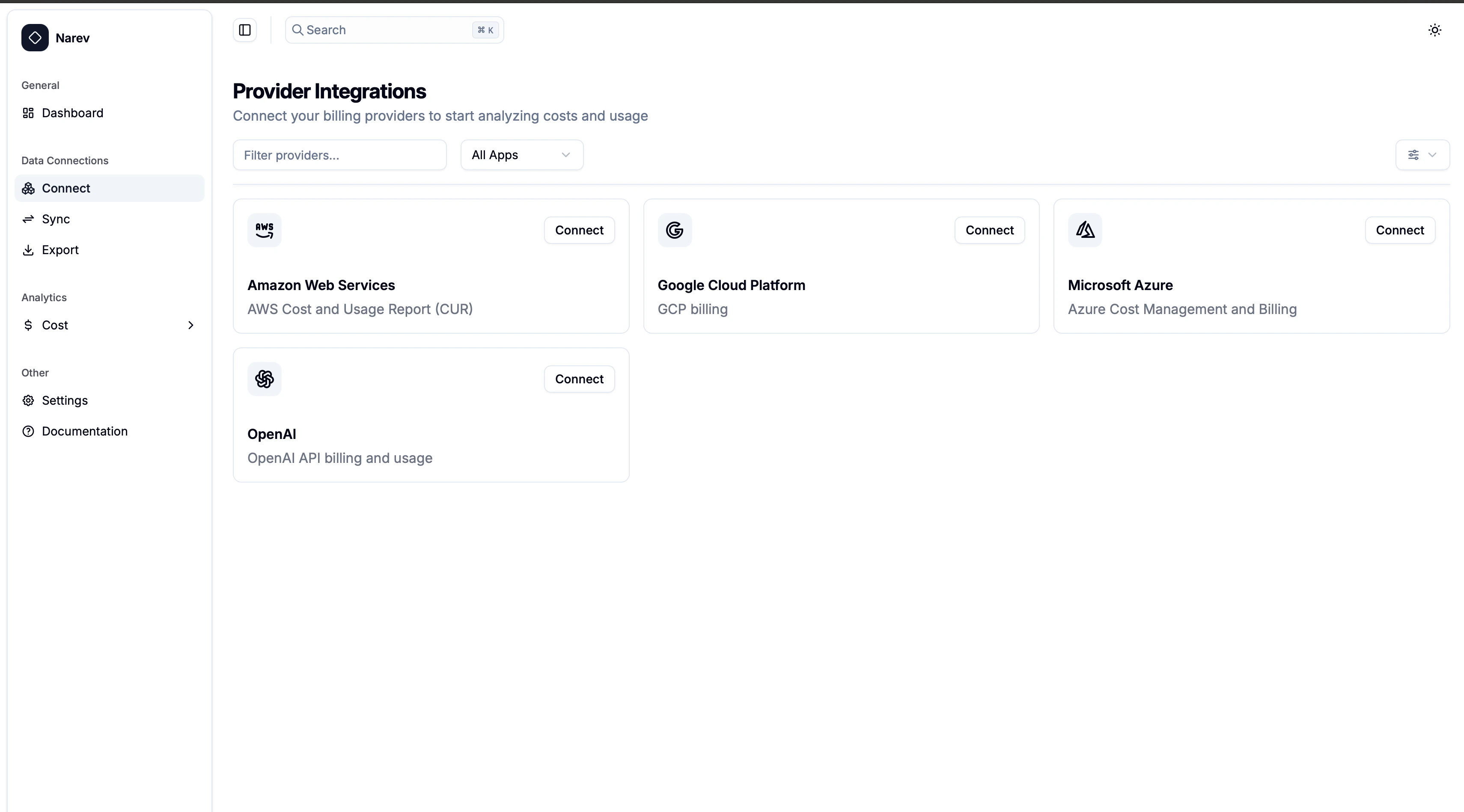
- In the NarevAI sidebar, under Data Connections, click Connect
- You’ll see the “Provider Integrations” page with available providers
Step 2: Select OpenAI Provider
- Find the OpenAI card in the provider grid
- Click the Connect button on the OpenAI card
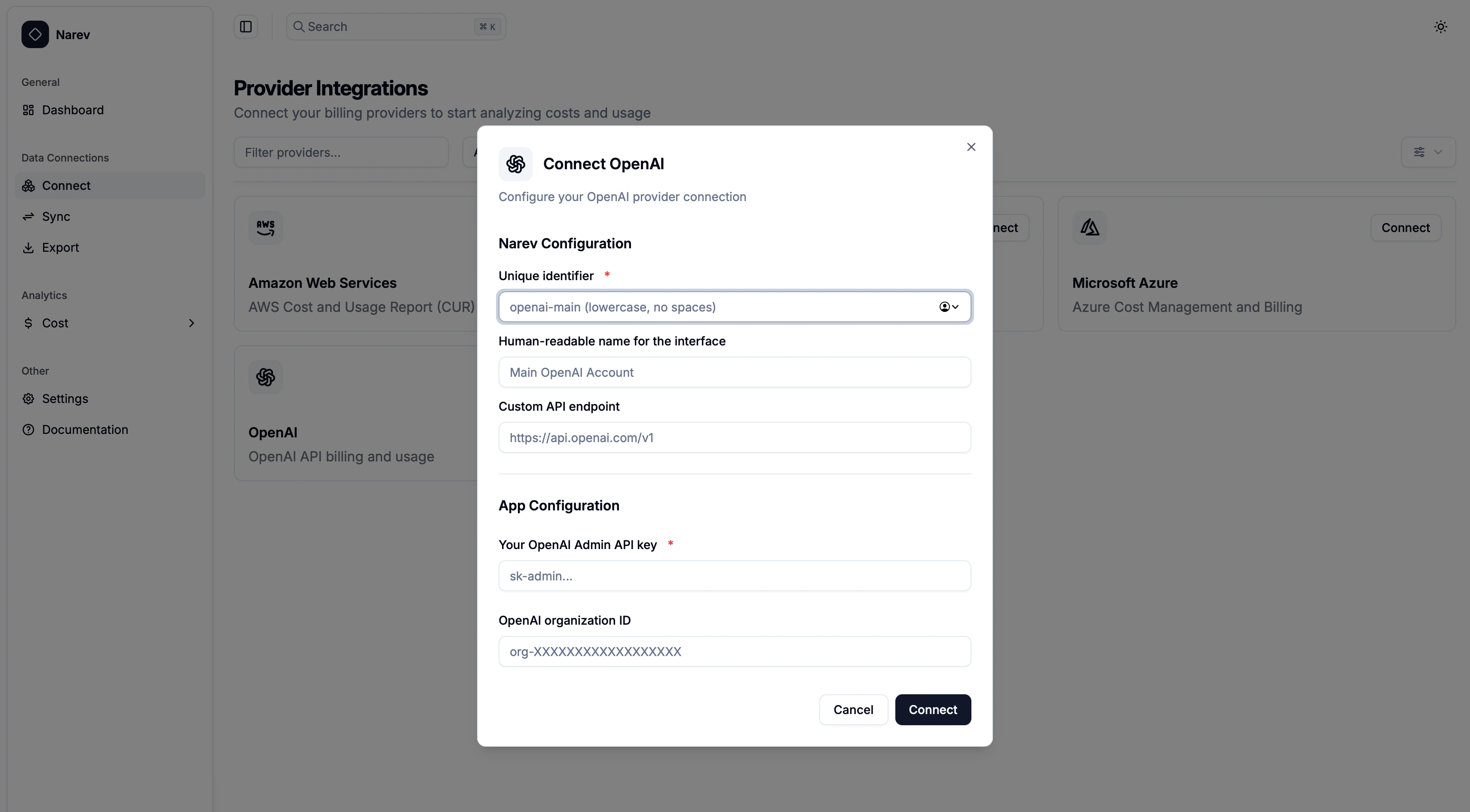
- The OpenAI configuration dialog opens
Narev configuration
Provider Name ✅ Required
- Unique identifier (for example,
openai-main, company-openai)
- Format: lowercase letters, numbers, hyphens, underscores only
Display Name (Optional)
- Human-readable name (for example,
Main OpenAI Account, Company OpenAI)
- Shown in the interface
App configuration - OpenAI credentials ✅ Required
Token ✅
- Your OpenAI administrator API key (format:
sk-admin-xxxxxxxxxxxxxxxxxxxxxxxx)
- Password field with show/hide toggle
Provider-specific configuration
API Endpoint (Optional)
- Custom API endpoint (default:
https://api.openai.com/v1)
- Use only for custom deployments or proxies
- Important: Proxy must provide usage data in OpenAI-compatible format
Organization ID (Optional)
- OpenAI organization identifier (format:
org-XXXXXXXXXXXXXXXXXX)
- Leave empty to use your default organization
Step 4: Connect Provider
- Review all configuration settings
- Click the Connect button
- NarevAI tests the connection to OpenAI API
- If successful, NarevAI adds the provider and marks it as “Connected”
- You can now sync billing data from this OpenAI account
Connection Test includes:
- API key validity check
- Billing endpoints access verification
- Organization permissions verification (if specified)
Configuration examples
Basic setup
Provider Name: openai-main
Display Name: Main OpenAI Account
Token: sk-admin-xxxxxxxxxxxxxxxxxxxxxxxxxxxxxxxxxxxxxxxx
Multi-Organization Setup
Provider Name: openai-prod
Display Name: Production OpenAI Organization
Token: sk-admin-xxxxxxxxxxxxxxxxxxxxxxxxxxxxxxxxxxxxxxxx
Organization ID: org-ABC123DEF456GHI789
Custom Endpoint Setup
Provider Name: openai-proxy
Display Name: OpenAI via Corporate Proxy
Token: sk-admin-xxxxxxxxxxxxxxxxxxxxxxxxxxxxxxxxxxxxxxxx
API Endpoint: https://api-proxy.company.com/openai/v1
Common Test Results
Success Response
Successfully connected to OpenAI API
Endpoint: https://api.openai.com/v1
Organization: org-ABC123DEF456GHI789
Authentication Failed
Authentication failed - please check your API key
Connection Failed
Connection failed with status 403
Supported Features
The OpenAI provider supports:
- ✅ Usage data by model
- ✅ Usage data by API key
- ✅ Daily usage aggregation
- ✅ Organization-level data
- ✅ Custom API endpoints
Troubleshooting
- Ensure your key starts with
sk-admin- or has administrator permissions
- Regular
sk- keys without billing access do not work
Organization Access Issues
- Verify you’re a member of the specified organization
- Check that the organization ID is correct (starts with
org-)
- Ensure your API key has access to the organization
Network/Endpoint Issues
- Verify the API endpoint URL is correct
- Check if your network allows access to OpenAI’s API
- For corporate networks, you may need to use a proxy endpoint
Permission Errors
- Confirm your API key has
organization.billing.read permissions
- Ensure you have administrator role in the OpenAI organization
- Some billing data may require higher permission levels
Data Collection
Once configured, the OpenAI provider will collect:
- Usage metrics: Token consumption, request counts, model usage
- Billing data: Costs, usage charges, credit consumption
- Organization data: Multi-organization billing breakdown
- Time-series data: Daily aggregated metrics
Data collection runs automatically based on your configured schedule and appears
in the NarevAI dashboard after the first successful sync.